https://blog.csdn.net/qq_44168575/article/details/97192690
小菜鸡学习C#一个星期的心得 因学校课设需要,小学期期间花了几天学了一下C#,因为没有人带,纯野生的那种,就算是现在的作品也有不少的Bug,但应付一下答辩什么的还是可以的,费话不多说,先讲讲我的处女作都有些什么功能
 整个面板分为三个部分:串口配置和数据接收、波形显示、坐标和数据存储 整个面板分为三个部分:串口配置和数据接收、波形显示、坐标和数据存储 1、串口数据接收(只有模拟量,无进制转换) 2、接收数据波形显示 3、接收数据的存储(excel) 1.1 数据接收 这部分主要有两件事:配置串口、数据接收
这部分相对简单(如果像我一样只是单纯的拿到采集的数据,不进行进制转换什么的),在你的form1窗体里边加入serialport1控件,选中它,在属性栏中找到一个黄色的闪电图标,在它的下面有一个datareceived,点击两次会在form1.cs文件中产生一个函数 1.2串口接收事件产生 private void serialPort1_DataReceived(object sender, System.IO.Ports.SerialDataReceivedEventArgs e) { date = serialPort1.ReadExisting(); list_1.Add(date); textBox2.AppendText(date + "\r\n"); }
同时在form1.designer.cs文件中会产生一个事件,这条语句必需要加在form_load(双击form1窗口产生的函数)函数中 private void Form1_Load(object sender, EventArgs e) { this.serialPort1.DataReceived += new System.IO.Ports.SerialDataReceivedEventHandler(this.serialPort1_DataReceived); }
另外还需要配置串口(我这里只设置了串口号和波特率,如果有需要可以自己再添加其他的要求) 1.3配置及打开串口 private void button1_Click(object sender, EventArgs e) { try { if (comboBox1.Text != "" | comboBox2.Text != "") { serialPort1.PortName = comboBox1.Text; serialPort1.BaudRate = Convert.ToInt32(comboBox2.Text); serialPort1.Open(); button1.Enabled = false; button2.Enabled = true; } } catch { MessageBox.Show("请配置端口,错误"); } }
- 1
- 2
- 3
- 4
- 5
- 6
- 7
- 8
- 9
- 10
- 11
- 12
- 13
- 14
- 15
- 16
- 17
- 18
1.4 关闭串口 private void button2_Click(object sender, EventArgs e) { if (serialPort1.IsOpen) { serialPort1.Close(); button1.Enabled = true; button2.Enabled = false; } }
到此,串口这部分的工作算是做完了 2.1波形显示 这部分内容主要分为三个部分:画表格、画坐标、画波线
这部分是三个里边不太好理解的一个,代码比较多,涉及的公式也较多,猛地一看脑壳痛,其实如果你能够静下心来,还是比较简单的,主要的思想就是 : 找点+平移 2.2 画网格 private void groupBox3_Paint(object sender, PaintEventArgs e) { for (int i = 0; i <= max_x / gap_x + 1; i++) { e.Graphics.DrawLine(TablePen, StartPrint_x+d + i * gap_x, StartPrint_y, StartPrint_x+d+ i * gap_x, max_y + 6); } for (int i = 0; i <= (max_y - 10) / gap_y; i++) { e.Graphics.DrawLine(TablePen, StartPrint_x+d, StartPrint_y + i * gap_y, StartPrint_x+d + max_x, StartPrint_y + i * gap_y); } }
- 1
- 2
- 3
- 4
- 5
- 6
- 7
- 8
- 9
- 10
- 11
- 12
相信很多人看到这段代码直接自动忽略跳过了吧,哈哈哈,其实就一个函数: e.Graphics.DrawLine(pen, x1, y1, x2, y2);
意思是:拿着一支名叫 pen 的笔,从点(x1,y1)画到点(x2,y2),里边有几个变量限于篇幅,这里不解释(找点+平移),源文件中有(且有注释),大家可以看看 2.3画坐标轴线 这里很有意思啊,我在网上找了一些画轴线的代码(文末有链接),过于深奥,于是我想了一个很巧妙的办法,将 “ | ” 和 “ — ” 通过 for 循环连续画,并通过字符的形式打印在合适的位置上(这里需要根据自己的情况进行微调),这个方法看起来很 low 不过很好用,如果大家有什么简单的方法别忘记给我讲一下啊
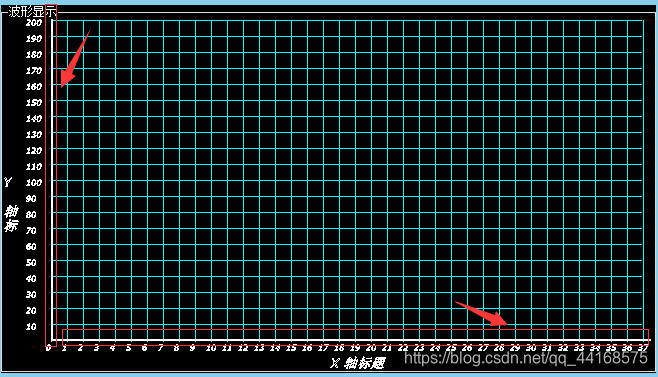
这段代码看起来也不是很友好,其实也就一个函数: gp.AddString(string, pen, font_style, font_size, text_form(x, y, width, height), null);
意思是:拿着一支名叫 pen 的笔,它的粗细为 font_size ,在名叫 text_form 的文本框中写下风格为 font_style 的 string 字符,这个文本框的高为 height,宽为 width ,文本框的左上点坐标为( x , y )
还要提一点,上面那个函数必需和下面这个函数一同使用,否则字符不生效 e.Graphics.DrawPath(Pens.White, gp);
private void groupBox3_Paint(object sender, PaintEventArgs e) { string axis_x = "—"; string axis_y = "|"; for (int i = 0; i < 75; i++) { gp.AddString(axis_x, family, fontstyle, 8, new RectangleF(StartPrint_x + d + i * gap_x/2 - 2, StartPrint_y + max_y - 16, 400, 50), null); } for (int i = 0; i < 40; i++) { gp.AddString(axis_y, family, fontstyle, 8, new RectangleF(47, i * gap_y/2 + 12, 400, 50), null); } e.Graphics.DrawPath(Pens.White, gp); }
- 1
- 2
- 3
- 4
- 5
- 6
- 7
- 8
- 9
- 10
- 11
- 12
- 13
- 14
- 15
2.4标记刻度及表头 其实这个和上面讲的画坐标轴轴线原理是一样的,主要涉及 gp.AddString()和 e.Graphics.DrawPath( )两个函数,再将它们通过 for 循环放在合适的位置就好了 private void groupBox3_Paint(object sender, PaintEventArgs e) { for (int i = 0; i <= max_x / gap_x + 1; i++) { gp.AddString((i).ToString(), family, fontstyle, 8, new RectangleF(StartPrint_x+d + i * gap_x - 7, StartPrint_y+max_y-8, 400, 50), null); } for (int i = 0; i <max_y/gap_y; i++) { string Str_y = Convert.ToString((20 - i) * (Max-Min)/20); if (i == 0) Str_y = Max.ToString(); if (i == 20) break; gp.AddString(Str_y, family, fontstyle, 8, new RectangleF(23, i * gap_y+12, 400, 50), null); } gp.AddString(textBox11.Text, family, fontstyle, 12, new RectangleF(groupBox3.ClientRectangle.Width / 2, StartPrint_y + max_y+5, 400, 50), null); gp.AddString(textBox12.Text, family, fontstyle, 12, new RectangleF(0, groupBox3.ClientRectangle.Height / 2 - StartPrint_y, 10, 50), null); e.Graphics.DrawPath(Pens.White, gp); }
- 1
- 2
- 3
- 4
- 5
- 6
- 7
- 8
- 9
- 10
- 11
- 12
- 13
- 14
- 15
- 16
- 17
- 18
- 19
2.5画波形图 我做的这个波形显示可以将数据分为四个范围,每个范围用不同的颜色绘制,因此在代码中有四个范围的判断,这里涉及的函数和画网格的地方是一样的 private void serialPort1_DataReceived(object sender, System.IO.Ports.SerialDataReceivedEventArgs e) { if (dstr2 <= Up_a && dstr2 > Dw_a) { graphics.DrawLine(LinesPen_a, Origin_x + i * gap_x+d, dstr1, Origin_x + (i + 0.1f) * gap_x+d, (int)(Origin_y - dstr2 / div)); } i += step; dstr1 =(int)( Origin_y - dstr2 /div); Delay(time); }
3.1选择存储路径 private void button18_Click(object sender, EventArgs e) { openFileDialog1.Filter = "excel文件|*.xls"; if(openFileDialog1.ShowDialog()==DialogResult.OK) { textBox14.Text = openFileDialog1.FileName; } }
3.2创建工作簿及保存 这里要引用一个空间名,具体的方法的文章我忘记了流程是: using Microsoft.Office.Interop.Excel;
private void button19_Click(object sender, EventArgs e) { Microsoft.Office.Interop.Excel.Application excel = new Microsoft.Office.Interop.Excel.Application(); object missing = System.Reflection.Missing.Value; Workbook workbook = excel.Application.Workbooks.Open(textBox14.Text, missing, missing, missing, missing, missing, missing, missing, missing, missing, missing, missing, missing, missing, missing); Worksheet newWorksheet = (Worksheet)workbook.Worksheets.Add(missing, missing, missing, missing); excel.Application.DisplayAlerts = false; workbook.Save(); workbook.Close(false, missing, missing); }
- 1
- 2
- 3
- 4
- 5
- 6
- 7
- 8
- 9
- 10
- 11
- 12
3.3写入数据
这句的意思是在 excel 的第 1 行第 2 newWorksheet.Cells[1, 1] = "chen";
4.1截图 这是一个完整的函数, private void button6_Click(object sender, EventArgs e) { System.Drawing.Point p = groupBox3.PointToScreen(new System.Drawing.Point(0, 0)); Bitmap bit = new Bitmap(this.Width, this.Height); Graphics g = Graphics.FromImage(bit); g.CompositingQuality = CompositingQuality.HighQuality; g.CopyFromScreen(p.X, p.Y, 0, 0, new Size(groupBox3.Width, groupBox3.Height)); number += 1; bit.Save("状态" + number.ToString() + ".png"); }
[1]: https://www.cnblogs.com/liuxianan/archive/2012/07/29/2613755.html 截图参考
[2]: https://blog.csdn.net/lickilygou/article/details/85102538 界面设置参考 C#串口通信及数据表格存储 常用测试中经常用到测试数据的自动化记录,这样由串口采集输出到excel中功能就变得非常实用;下面介绍实现方法:结合的技术是dataGridView控件和SaveFileDialog;由于电脑不一定都安装有office,直接使用office组件功能缺乏一定的通用性,因此本实例采用存储为csv格式表格数据文件,然后根据设置的格式转化为EXCEL文件即可。
|